

Enhanced Broadcasting with Multiple Encodes
When you stream to Twitch, we might create different video qualities (called "transcodes") from your original stream. For example, if you stream in high quality 1080p, we might also make versions in 720p and 480p. This helps viewers with slow internet or older devices watch your stream without buffering.
Not all streams get Twitch-provided multiple qualities every time. However, with Enhanced Broadcasting, you can now send multiple video qualities directly from your broadcasting software (like OBS Studio, Meld, Streamlabs, or XSplit Broadcaster). This ensures your viewers always have different quality options to choose from, improving their watching experience.
Enhanced broadcasting is the technology that enables Dual Format Streaming and 2k (1440p) Streaming on Twitch by providing support for multiple client-side encodes (similar to transcodes) and automatic stream configuration. You can check your eligibility for Dual Format and 2K in your creator dashboard in Stream > Settings. Enhanced Broadcasting is required to use Dual Format and/or 2K, even if you qualify for added server-side transcode support for those streams.
We recently added server-side transcode support for Dual Format and 2k Streams using Enhanced Broadcasting to reduce strain and resolve performance issues. Learn more.
Multiple Client-Side Encodes
Transcoding is a process that creates multiple video qualities of your original high-quality streamed content. Providing multiple video qualities enables viewers experiencing poor network conditions, or those watching on older devices to watch your content without buffering. Transcodes are provided to many (but not all) Twitch streamers and are generated in Twitch datacenters. Multiple Encodes are generated directly from your source content in your broadcast software, and produce multiple video qualities, improving the experience for viewers.
Automatic Stream Configuration
Understanding complicated video settings to achieve the highest video quality can be time consuming and frustrating. By sending information about your setup to Twitch, automatic stream configuration removes the need for offline trial and error to find the correct settings. A server-side algorithm then returns the best possible configuration for broadcast software that optimizes the viewer experience given constraints in your setup.
Getting Started
To try Enhanced Broadcasting, first upgrade to OBS Studio v30.2 or XSplit Broadcaster 4.5.2406.1801 or newer. Then, enable Enhanced Broadcasting within the broadcast software settings. Use Twitch Inspector to monitor your broadcast and debug any networking issues.
Learn more about Twitch Inspector here: Guide to Using Twitch Inspector
Streaming with Enhanced Broadcasting in OBS Studio
The following instructions must be completed in OBS Studio.
- Upgrade to OBS Studio v30.2 (or newer) by going to Help -> Check for Updates, or by downloading the newest version from OBS Project's Download page.
- At Settings -> Video, confirm your Base (Canvas) Resolution, Output (Scaled) Resolution, and framerate settings.
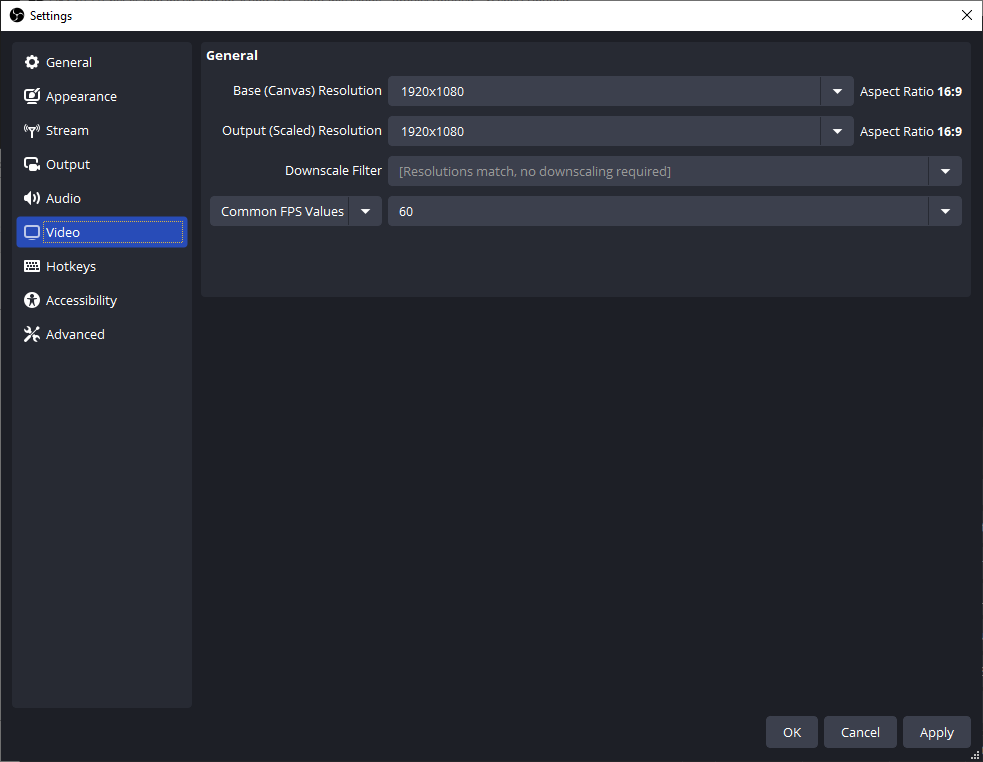
You can select a larger Canvas resolution (e.g. 3840x2160) for recording a local VOD, but the live stream's largest video track will never be larger than the Scaled resolution. For the best performance (and the most efficient utilization of your GPU), we recommend setting them both to either 1920x1080 or 1280x720 and 60fps.
- At Settings -> Stream, select Twitch for Service, click Connect Account (recommended), and proceed to login to Twitch. In the Multitrack Video section, check the Enable Enhanced Broadcasting checkbox.

While we recommend most streamers leave Auto checked, you can optionally configure Maximum Streaming Bandwidth or Maximum Video Tracks. These advanced options are limits you can use to constrain the amount of resources (network bandwidth and GPU encoding capacity respectively) that Enhanced Broadcasting may use. It's important to note that these are upper limits, not a target or preference.
- Start streaming and monitor your stream using Twitch Inspector.
If you are trying to stream in 2k (1440p) or in Dual Format, this will require extra set up. Enhanced Broadcasting is the technology that powers 2k and Dual Format streams. Learn more about how to set up Dual Format and 2k (1440p) streams.
Streaming With Enhanced Broadcasting in XSplit Broadcaster
The following instructions must be completed in XSplit Broadcaster.
- Upgrade to XSplit Broadcaster 4.5.2406.1801 (or newer) by going to Help -> Check for Updates or by downloading the newest versions from XSplit's Download page. Make sure that the Twitch plugin is updated to the newest version by going to Tools -> Plugin Store.
- Go to Broadcast -> Setup a new output -> Twitch and proceed to login to Twitch.
- In the Video Encoding -> Codec section, select NVENC H.264 (NVIDIA …) and check the Enable Enhanced Broadcasting checkbox.
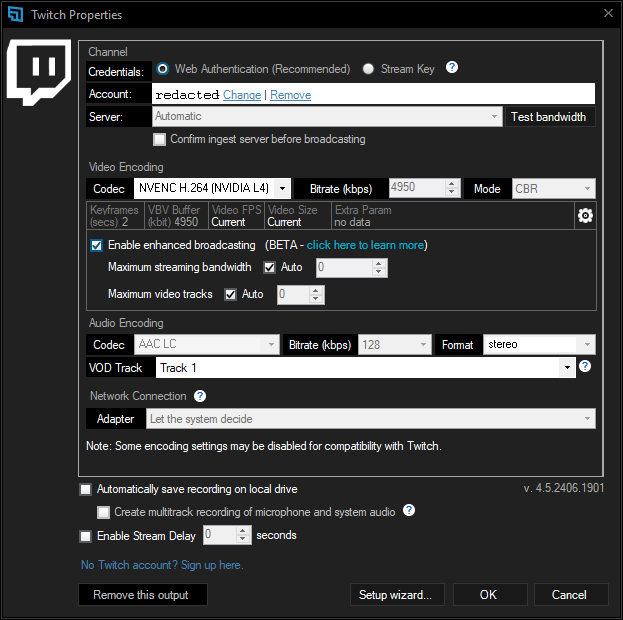
While we recommend most streamers leave Auto checked, you can optionally configure Maximum Streaming Bandwidth or Maximum Video Tracks. These advanced options are limits you can use to constrain the amount of resources (network bandwidth and GPU encoding capacity respectively) that Enhanced Broadcasting may use. It's important to note that these are upper limits, not a target or preference.
- At the top right, confirm your Resolution and Frame rate.
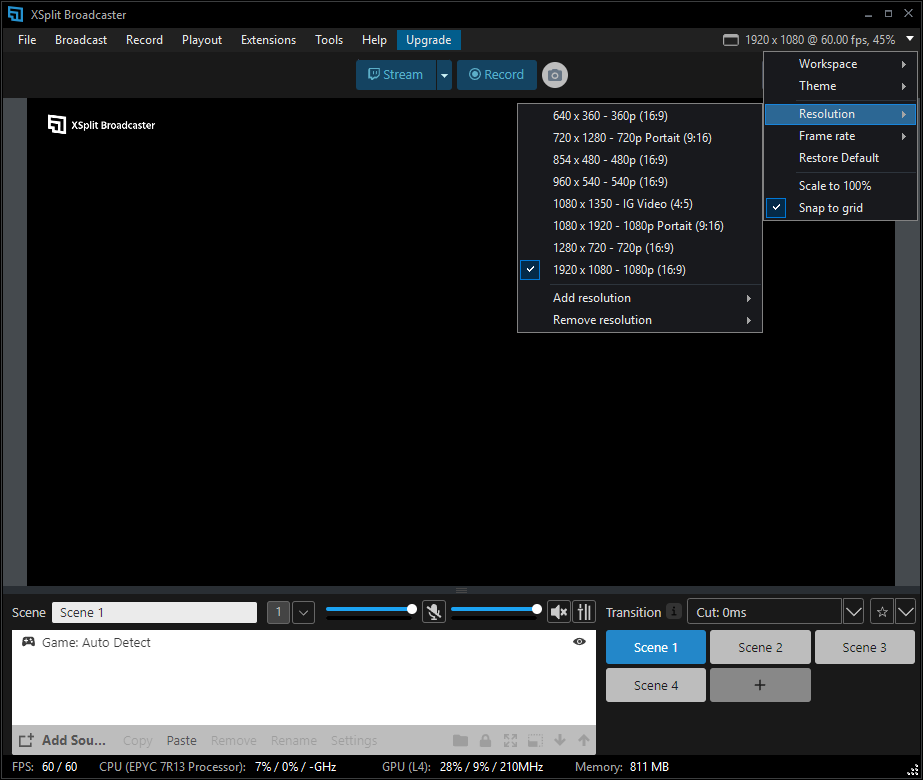
- Start streaming and monitor your stream using Twitch Inspector.
Dual Format and 2k Streaming: Benefits of Enhanced Broadcasting
Streamers using Enhanced Broadcasting can optimize their viewing experience and reach more viewers across mobile, web, and TV with Dual Format Streaming and 2k Streaming. These features both require Enhanced Broadcasting.
Dual Format Streaming allows you to send both a horizontal and a vertical version of your broadcast to Twitch at the same time. This lets you reach more viewers with an optimized experience—no matter what device they're using. Desktop and TV viewers will continue to see your standard horizontal broadcast. Mobile viewers will see a new, full-screen vertical view when holding their phone upright, or the standard horizontal view when they rotate their device. Dual Format streaming is available to all streamers on Twitch.
2k (1440p) Streaming offers a noticeable step up from 1080p streaming, with richer detail, improved clarity, and better performance—whether you're gaming, making art, or just chatting. Higher quality streams unlock access to 2k Clips and VODs for you and your viewers, too. 2k streaming is limited to Affiliates and Partners only.
You can stream in Dual Format and 2k (1440p) at the same time for the best viewing experience.
Added Server-Side Transcode Support: To reduce strain on your system and improve performance, Twitch also provides added server-side transcode support for these streams for Partners and select Affiliates. This added server-side transcode support lets us utilize your GPU to encode the highest-resolution horizontal and vertical streams, while using server-side transcoding to fill in all the lower resolutions. Ultimately, this results in your viewers getting a higher-quality experience across all formats. Check your Advanced Broadcast Settings on the Stream Settings page in your Creator Dashboard to see if you have access to added server-side transcode support for Dual Format and 2k streams.
Frequently Asked Questions
Who has access to Enhanced Broadcasting?
Enhanced broadcasting is available to all streamers on Twitch. Dual Format, a feature that requires Enhanced Broadcasting technology, is also available to all streamers on Twitch. 2k streaming also requires Enhanced Broadcasting and is limited to Affiliates and Partners at this time.
How much overhead is generated by multiple encodes? Does it impact my content creator tools or gameplay?
When you use your GPU (graphics card) for video encoding, it should not significantly affect gaming performance – Modern GPUs have a dedicated chip just for video encoding, so they can handle it without slowing down your games. Even with older GPUs like the NVIDIA GeForce 900 series, our testers played fast-paced games and didn't notice any difference in performance.
However, we know it can put strain on some systems. After hearing this feedback during beta testing, we have rolled out added Server-Side Transcode Support for Enhanced Broadcasting Streams in Dual Format and 2k: To reduce strain on your system and improve performance, Twitch also provides added server-side transcode support for these streams for Partners and select Affiliates. This added server-side transcode support lets us utilize your GPU to encode the highest-resolution horizontal and vertical streams, while using server-side transcoding to fill in all the lower resolutions. Ultimately, this results in your viewers getting a higher-quality experience across all formats. Check your Advanced Broadcast Settings on the Stream Settings page in your Creator Dashboard to see if you have access to added server-side transcode support for Dual Format and 2k streams. Please note that this added support is not available for regular Enhanced Broadcasting streams and is limited to Dual Format or 2k Enhanced Broadcasting streams for qualifying users.
What renditions/qualities will multiple encodes generate and deliver to my viewers?
Automatic stream configuration optimizes for viewer experience, so it will depend. Automatic stream configuration uses various factors like screen size, broadcasting software settings, GPU/CPU models, OS/drivers version, and network speed. To balance the best viewer experience, performance impact to your system, and your available internet bandwidth, you will receive a configuration that may change every time you start streaming.
How does the viewer experience change based on my system, or environmental factors?
Every time you start streaming with Enhanced Broadcasting, automatic stream configuration chooses a configuration that optimizes for the best possible viewer experience. To make the most out of your setup, the configurations may:
- Vary the total streaming bandwidth between 10.5 Mbps and 1.5 Mbps.
- Vary the highest quality track's maximum resolution from 1080p60 down to 480p.
- Vary the number of renditions between 5 and 2.
- Vary the selection of renditions across an expansive set of supported resolutions (1080p, 720p, 540p, 480p, 360p, 240p, and 160p).
- Vary the video bitrate of individual renditions from 6 Mbps (e.g., 1080p AVC) down to 200 Kbps (e.g., 160p AVC).
- Vary the framerate between high (60, 50, or 48 fps) and standard (30, 25, or 24 fps).
- Vary the scaler algorithm to balance quality with GPU utilization (e.g., Lanczos, bicubic, and bilinear).
- Vary video encoder settings (including codec profile, encoder preset, look-ahead window, psycho visual AQ, and number of B-frames), depending on the GPU vendor and driver version.
